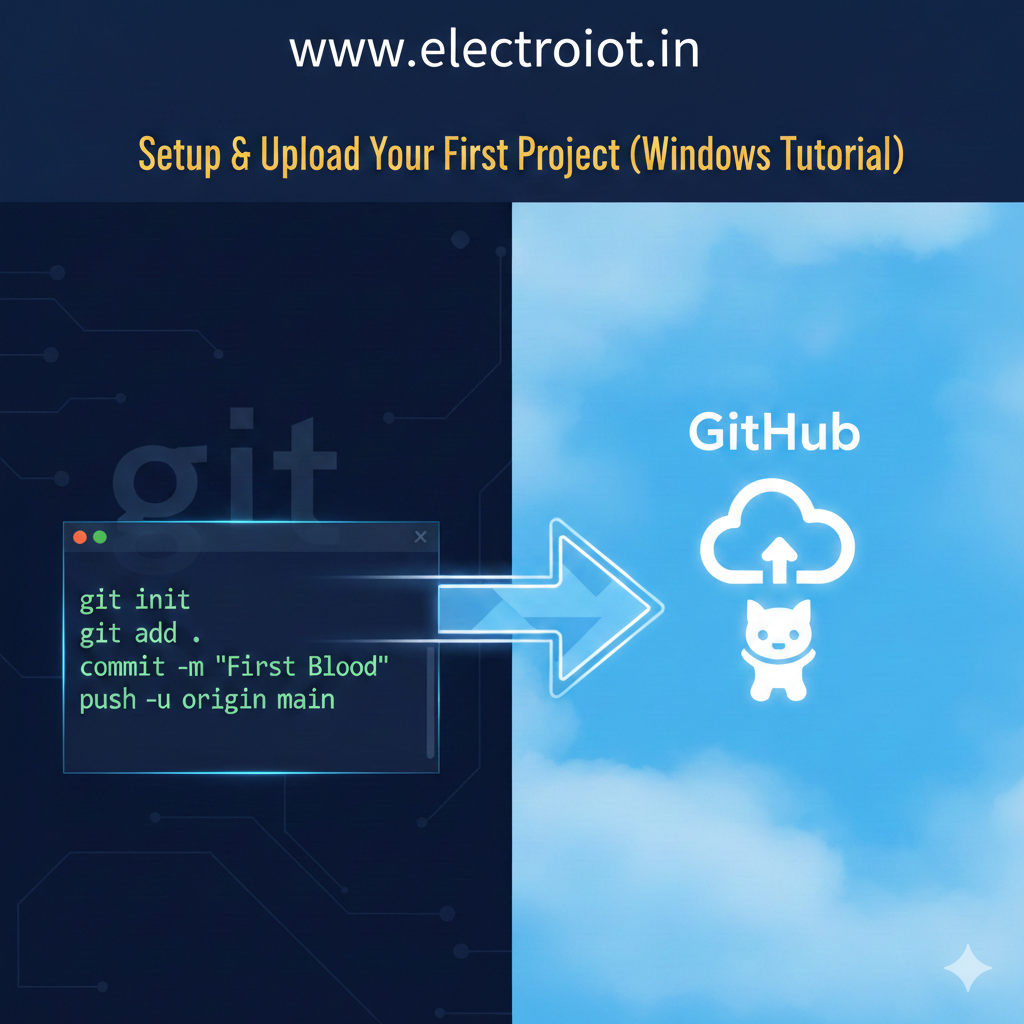
A beginner’s guide to mastering version control on Windows.
Step 1: Download and Install Git
First, you need the software that allows your computer to speak “Git.”
-
Download: Go to git-scm.com and download the Windows installer.
-
Install: Run the
.exefile. You can keep most settings as “Default,” but ensure “Git Bash” is selected. -
Verify: Once installed, right-click anywhere on your desktop and select “Git Bash Here.” A black terminal window should open.
Step 2: Configure Your Identity
Before you write code, Git needs to know who you are so it can label your work.
In your Git Bash window, type these two commands (replace with your info):
git config --global user.name "Your Name"
git config --global user.email "your.email@example.com"
Step 3: Create Your Online Repository
Before uploading, you need a “home” for your code on the web.
-
Log in to GitHub (or Azure/GitLab).
-
Click the “+” icon and select New repository.
-
Give it a name and click Create repository.
-
Copy the URL (e.g.,
https://github.com/username/project.git).
Step 4: Prepare Your Local Folder
Navigate to your project folder on your computer. Right-click inside that folder and choose Git Bash Here. Now, run these “The Big Three” commands:
1. Initialize
This creates a hidden .git folder that starts tracking changes.
git init
2. Stage (Add)
This tells Git, “I want to include these files in my next snapshot.”
git add .
3. Commit
This takes the snapshot and saves it to your local history.
git commit -m "My first commit"
Step 5: Connect and Push to the Cloud
Now, send your local files to the online repository you created in Step 3.
-
Link the two: (Paste your copied URL here)
Bashgit remote add origin https://github.com/YourUsername/YourRepo.git -
Push the code:
Bashgit branch -M main git push -u origin main
Note: A popup will appear asking you to sign in to your GitHub/Azure account. Once you log in, your files will be live!
Summary Checklist
| Command | What it does |
git init |
Starts a new Git project. |
git add . |
Selects all files for the “upload.” |
git commit -m "..." |
Saves the snapshot locally. |
git push |
Sends the files to the internet. |
