🌟 Introduction
You’ve installed Solar Assistant and connected it to Home Assistant via MQTT. Now comes the exciting part – creating a beautiful, professional dashboard that shows all your solar data at a glance!
A well-designed dashboard does more than just look good. It helps you:
-
📊 Monitor your solar system’s performance instantly
-
🔋 Track battery health and usage patterns
-
⚡ Optimize energy consumption to save money
-
🎯 Control inverter settings with one click
In this guide, I’ll share my complete Solar Assistant dashboard code that I use for my FLIN Energy inverter system. The best part? You can easily adapt it for your own inverter!
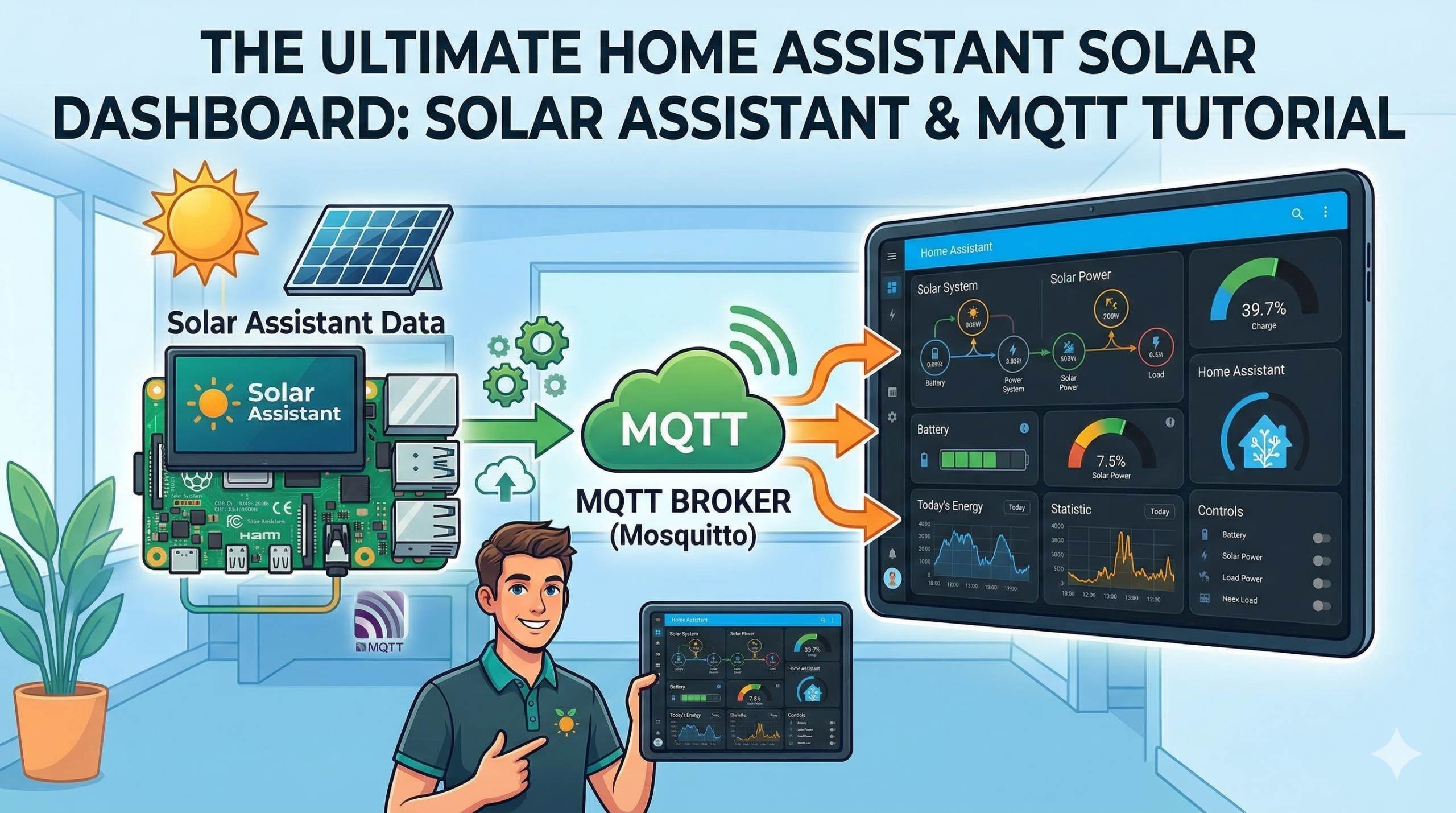
✨ What Makes This Dashboard Special?
| Feature | Description |
|---|---|
| 🎨 Dark Theme | Easy on the eyes, modern look with gradient background |
| ⚡ Power Flow Card | Animated visualization of energy flow |
| 🔋 Battery Gauges | SOC and Health with color-coded severity |
| 📈 Statistics Cards | Today’s energy production/consumption |
| 🎮 Control Panel | All inverter settings in one place |
| 🌡️ Temperature Monitoring | Battery and MOS temperatures |
| 🔌 Grid & Load Details | Complete electrical parameters |
🛠️ Prerequisites
Before adding this dashboard, make sure you have:
✅ Solar Assistant installed and running
✅ MQTT connected to Home Assistant
✅ HACS installed (for Power Flow Card Plus)
✅ Card Mod installed (for custom styling)
Install Required Cards
If you haven’t installed these cards yet:
Power Flow Card Plus
-
Open HACS → Frontend → Explore & Download
-
Search for “power-flow-card-plus”
-
Click Download
-
Refresh your browser
Card Mod
-
In HACS → Frontend → Explore & Download
-
Search for “card-mod”
-
Click Download
-
Refresh your browser
📋 The Complete Dashboard Code
Here’s the complete YAML code for my Solar Assistant dashboard. This creates a vertical-stack layout with all sections beautifully organized:
type: vertical-stack
cards:
  # ================ POWER FLOW CARD ================
  - type: custom:power-flow-card-plus
    name: Solar System
    entities:
      entity: sensor.flin_energy_battery_power
      solar:
        entity: sensor.flin_energy_pv_power
      grid:
        entity: sensor.flin_energy_grid_power
      load:
        entity: sensor.flin_energy_load_power
      battery:
        entity: sensor.flin_energy_battery_power
        state_of_charge: sensor.flin_energy_battery_state_of_charge
        state_of_health: sensor.flin_energy_state_of_health
    invert_secondary: true
    decimals: 1
    watt_decimals: 1
    energy_flow_rate_precision: 1
    color:
      mode: consistent
      battery:
        state_of_charge: true
      power_from_grid:
        state_of_charge: true
      power_to_grid:
        state_of_charge: true
        color_value: 100
      solar:
        state_of_charge: true
        color_value: 80
    card_mod:
      style: |
        ha-card {
          padding: 15px;
          border-radius: 15px;
          background: linear-gradient(145deg, #1a1a2e, #16213e);
        }

  # ================ QUICK STATS CARDS ================
  - type: horizontal-stack
    cards:
      - type: entity
        entity: sensor.flin_energy_battery_state_of_charge
        name: Battery
        icon: mdi:battery-high
        color: var(--accent-color)
        card_mod:
          style: |
            ha-card {
              background: rgba(255, 215, 0, 0.1);
              border-radius: 10px;
              border-left: 5px solid gold;
            }
      - type: entity
        entity: sensor.flin_energy_pv_power
        name: Solar Power
        icon: mdi:solar-power
        color: orange
        card_mod:
          style: |
            ha-card {
              background: rgba(255, 165, 0, 0.1);
              border-radius: 10px;
              border-left: 5px solid orange;
            }
      - type: entity
        entity: sensor.flin_energy_load_power
        name: Load
        icon: mdi:home-lightning-bolt
        color: red
        card_mod:
          style: |
            ha-card {
              background: rgba(255, 99, 71, 0.1);
              border-radius: 10px;
              border-left: 5px solid tomato;
            }

  # ================ BATTERY DETAILS ================
  - type: heading
    heading: Battery Details
    heading_style: title
    icon: mdi:battery-charging

  - type: horizontal-stack
    cards:
      - type: gauge
        entity: sensor.flin_energy_battery_state_of_charge
        name: SOC
        unit: "%"
        min: 0
        max: 100
        severity:
          green: 50
          yellow: 30
          red: 0
        needle: false
      - type: gauge
        entity: sensor.flin_energy_state_of_health
        name: Health
        unit: "%"
        min: 0
        max: 100
        severity:
          green: 80
          yellow: 60
          red: 0

  - type: horizontal-stack
    cards:
      - type: entity
        entity: sensor.flin_energy_battery_voltage
        name: Voltage
        icon: mdi:flash
        unit: V
      - type: entity
        entity: sensor.flin_energy_battery_current
        name: Current
        icon: mdi:current-dc
        unit: A
      - type: entity
        entity: sensor.flin_energy_battery_power
        name: Power
        icon: mdi:battery
        unit: W

  - type: horizontal-stack
    cards:
      - type: entity
        entity: sensor.flin_energy_battery_temperature
        name: Battery Temp
        icon: mdi:thermometer
        unit: °C
      - type: entity
        entity: sensor.flin_energy_temperature_mos
        name: MOS Temp
        icon: mdi:chip
        unit: °C

  # ================ PV DETAILS ================
  - type: heading
    heading: PV Details
    heading_style: title
    icon: mdi:solar-panel

  - type: horizontal-stack
    cards:
      - type: entity
        entity: sensor.flin_energy_pv_voltage
        name: PV Voltage
        icon: mdi:flash
        unit: V
      - type: entity
        entity: sensor.flin_energy_pv_current
        name: PV Current
        icon: mdi:current-dc
        unit: A
      - type: entity
        entity: sensor.flin_energy_pv_power
        name: PV Power
        icon: mdi:solar-power
        unit: W

  # ================ GRID & LOAD ================
  - type: heading
    heading: Grid & Load
    heading_style: title
    icon: mdi:transmission-tower

  - type: horizontal-stack
    cards:
      - type: entity
        entity: sensor.flin_energy_grid_voltage
        name: Grid Voltage
        icon: mdi:flash
        unit: V
      - type: entity
        entity: sensor.flin_energy_grid_frequency
        name: Grid Freq
        icon: mdi:sine-wave
        unit: Hz
      - type: entity
        entity: sensor.flin_energy_load_power
        name: Load
        icon: mdi:home-lightning-bolt
        unit: W

  - type: horizontal-stack
    cards:
      - type: entity
        entity: sensor.flin_energy_ac_output_voltage
        name: AC Out
        icon: mdi:power-plug
        unit: V
      - type: entity
        entity: sensor.flin_energy_ac_output_frequency
        name: AC Freq
        icon: mdi:sine-wave
        unit: Hz
      - type: entity
        entity: sensor.flin_energy_load_percentage
        name: Load %
        icon: mdi:percent
        unit: "%"

  # ================ ENERGY TRACKING ================
  - type: heading
    heading: Energy Tracking (Today)
    heading_style: title
    icon: mdi:counter

  - type: horizontal-stack
    cards:
      - type: statistic
        entity: sensor.flin_energy_pv_energy
        name: Solar Energy
        icon: mdi:solar-panel
        period: day
        stat_type: change
      - type: statistic
        entity: sensor.flin_energy_load_energy
        name: Load Energy
        icon: mdi:home-lightning-bolt
        period: day
        stat_type: change

  - type: horizontal-stack
    cards:
      - type: statistic
        entity: sensor.flin_energy_grid_energy_in
        name: Grid Import
        icon: mdi:transmission-tower-import
        period: day
        stat_type: change
      - type: statistic
        entity: sensor.flin_energy_grid_energy_out
        name: Grid Export
        icon: mdi:transmission-tower-export
        period: day
        stat_type: change

  - type: horizontal-stack
    cards:
      - type: statistic
        entity: sensor.flin_energy_battery_energy_in
        name: Battery In
        icon: mdi:battery-plus
        period: day
        stat_type: change
      - type: statistic
        entity: sensor.flin_energy_battery_energy_out
        name: Battery Out
        icon: mdi:battery-minus
        period: day
        stat_type: change

  # ================ CELL VOLTAGES ================
  - type: heading
    heading: Cell Voltages
    heading_style: title
    icon: mdi:battery

  - type: horizontal-stack
    cards:
      - type: entity
        entity: sensor.flin_energy_cell_voltage_average
        name: Cell Avg
        icon: mdi:battery
        unit: V
      - type: entity
        entity: sensor.flin_energy_cell_voltage_highest
        name: Cell Max
        icon: mdi:battery-positive
        unit: V
        color: green
      - type: entity
        entity: sensor.flin_energy_cell_voltage_lowest
        name: Cell Min
        icon: mdi:battery-negative
        unit: V
        color: red

  # ================ SYSTEM CONTROLS ================
  - type: heading
    heading: System Settings (Controls)
    heading_style: title
    icon: mdi:cog

  - type: grid
    columns: 2
    square: false
    cards:
      - type: entity
        entity: select.flin_energy_output_source_priority
        name: Source Priority
        icon: mdi:swap-horizontal
      - type: entity
        entity: select.flin_energy_charger_source_priority
        name: Charger Priority
        icon: mdi:battery-charging
      - type: entity
        entity: select.flin_energy_max_charge_current
        name: Max Charge
        icon: mdi:current-ac
      - type: entity
        entity: select.flin_energy_max_grid_charge_current
        name: Max Grid Charge
        icon: mdi:transmission-tower
      - type: entity
        entity: select.flin_energy_battery_absorption_charge_voltage
        name: Absorption V
        icon: mdi:battery-charging-100
      - type: entity
        entity: select.flin_energy_battery_float_charge_voltage
        name: Float V
        icon: mdi:battery-charging-50
      - type: entity
        entity: select.flin_energy_shutdown_battery_voltage
        name: Shutdown V
        icon: mdi:battery-alert
      - type: entity
        entity: select.flin_energy_to_grid_battery_voltage
        name: To Grid V
        icon: mdi:battery-sync
      - type: entity
        entity: select.flin_energy_back_to_battery_voltage
        name: Back to Battery
        icon: mdi:battery-arrow-left
      - type: entity
        entity: select.flin_energy_power_saving
        name: Power Saving
        icon: mdi:leaf

  # ================ DEVICE INFO ================
  - type: heading
    heading: Device Info
    heading_style: title
    icon: mdi:information

  - type: horizontal-stack
    cards:
      - type: entity
        entity: sensor.flin_energy_device_mode
        name: Mode
        icon: mdi:information-outline
      - type: entity
        entity: sensor.flin_energy_cycles
        name: Cycles
        icon: mdi:counter
      - type: entity
        entity: sensor.flin_energy_capacity
        name: Capacity
        icon: mdi:battery
        unit: Ah
📝 How to Add This Dashboard
Step 1: Create a New Dashboard
-
Go to Overview in Home Assistant
-
Click the three dots (top right) → Edit Dashboard
-
Click the three dots again → Take Control (if using default dashboard)
-
Click “Add Card” (bottom right)
-
Scroll down and select “Manual” card
Step 2: Paste the Code
-
Delete any existing code in the YAML editor
-
Paste the complete code I provided above
-
IMPORTANT: Replace
flin_energywith your inverter’s entity prefix!-
If your entities are like
sensor.growatt_battery_soc, replaceflin_energywithgrowatt -
Check one of your entities in Developer Tools to see your prefix
-
Step 3: Save and Enjoy!
-
Click “Save”
-
Your beautiful dashboard will appear instantly!
-
You can drag to rearrange sections if needed
🎨 Customizing for Your Inverter
Finding Your Entity Prefix
-
Go to Developer Tools → States
-
Search for “battery_soc” or “pv_power”
-
Note the prefix (e.g.,
sensor.luminous_,sensor.microtek_, etc.) -
Replace all
flin_energyin the code with your prefix
Example Replacements
| Your Inverter | Replace flin_energy With |
|---|---|
| Growatt | growatt |
| Luminous | luminous |
| Microtek | microtek |
| Sukam | sukam |
| Havells | havells |
🎯 Understanding Each Dashboard Section
1. Power Flow Card (Top)
The animated flow diagram shows:
-
☀️ Solar power generation
-
🔋 Battery charge/discharge
-
🏠 Load consumption
-
⚡ Grid import/export
The dark gradient background with blue tones makes it stand out beautifully!
2. Quick Stats Cards
Three highlighted cards show your most important metrics:
-
Battery percentage with gold left border
-
Solar power with orange left border
-
Load power with tomato red left border
3. Battery Gauges
Two circular gauges show:
-
SOC (State of Charge) – color-coded: green (good), yellow (warning), red (critical)
-
Battery Health – tracks long-term battery condition
4. Energy Tracking
Statistics cards show today’s totals:
-
Solar energy generated
-
Load energy consumed
-
Grid import/export
-
Battery charge/discharge
5. Cell Voltage Monitor
For lithium batteries, monitor individual cell health:
-
Average voltage
-
Highest cell (green)
-
Lowest cell (red)
6. System Controls
All your inverter settings in dropdown menus:
-
Source priority (SBU/SUB/Utility)
-
Charging currents
-
Voltage thresholds
-
Power saving mode
💡 Pro Tips for Best Results
Tip 1: Use Statistics for Long-Term Tracking
The statistic cards automatically show today’s totals. Click on them to see:
-
Weekly trends
-
Monthly summaries
-
Yearly comparisons
Tip 2: Customize Colors
Want different colors? Modify these lines:
border-left: 5px solid gold;  # Change to any color
background: rgba(255, 215, 0, 0.1);  # Adjust opacity
Tip 3: Add More Cards
Feel free to add:
-
History graphs for voltage trends
-
ApexCharts for custom visualizations
-
Button cards for quick actions
Tip 4: Mobile Optimization
This dashboard is mobile-friendly! The horizontal stacks automatically wrap on smaller screens.
🚀 Advanced Customizations
Add a History Graph
- type: history-graph
  title: Battery & Solar History
  entities:
    - sensor.flin_energy_battery_state_of_charge
    - sensor.flin_energy_pv_power
    - sensor.flin_energy_load_power
  hours_to_show: 24
Add an ApexCharts Card
- type: custom:apexcharts-card
  title: Power Flow
  series:
    - entity: sensor.flin_energy_pv_power
      name: Solar
    - entity: sensor.flin_energy_load_power
      name: Load
    - entity: sensor.flin_energy_grid_power
      name: Grid
Add a Button for Quick Actions
- type: button
  name: Refresh Data
  icon: mdi:refresh
  tap_action:
    action: call-service
    service: mqtt.publish
    service_data:
      topic: "solar_assistant/command/refresh"
📱 Mobile View
This dashboard looks great on mobile too! The layout automatically adjusts:
-
Power flow card scales perfectly
-
Horizontal stacks become vertical on small screens
-
Grid cards reorganize for easy tapping
🎥 Video Tutorial
Watch me build this dashboard step by step:
❓ Frequently Asked Questions
Q: My entities have different names. How do I adapt the code?
A: Replace every flin_energy with your entity prefix. Check your entities in Developer Tools first!
Q: Some cards show “Entity not available”
A: Your inverter might not support all data points. Remove those specific cards or comment them out.
Q: The power flow card shows “Custom element not found”
A: Install Power Flow Card Plus from HACS first!
Q: Can I use this with any inverter?
A: Yes! As long as your entities are in Home Assistant via MQTT, this dashboard will work.
Q: How do I change the dark theme colors?
A: Modify the background: linear-gradient() values in the card_mod section.
